twitter
    Find out what I'm doing, Follow Me :)
Showing posts with label Blog Tips. Show all posts

Monday, June 20, 2011

Currently Online Readers Widget


tracker
Show off your blog's currently online readers in real time. When clicked on, this live widget will display which pages are being currently read by displaying the URLs. It's really easy to install, just Copy and paste the code from Whos.amung.us into your blog. Supposedly the code is suppposed to be on every page of your site, but it worked find for me in my blog post as you can see above. Go ahead and give the button above a click, and hopefully you will be able to see how popular this site is :)
Get this widget

Addthis Social Bookmarking Widget


AddThis
Bookmark and Share
AddThis spreads your content across the Web by making it easier for your visitors to bookmark and share it with other people, again…and again…and again. This simple yet powerful button is very easy to install and provides valuable statistics about the bookmarking and sharing activity of your users. AddThis is the perfect tool to help your visitors create a buzz for your site and increase its popularity and ranking.
Get this widget

Change the Title Tags in Blogger for More Search Engine Traffic


By default Blogger displays the blog title first, followed by the name of the post. As you might notice this is not good when it comes to SEO. It's important for the name of the post to come before the name of your blog, especially when it comes to google search results. Learn how to make your post title show up first so that you can reel in more traffic from the search engines.


Why Change the Titles?

It's quite important to have the Post Title + Blog Title arranged accordingly because this is how you would want your blog to be displayed on google's search results. This way more people will click on your link when searching google because the post title is more relevant than your post name.
Example Google Search Results:
You are most likely to click on the bottom image when searching google for the keywords "image reflection generator". The reason being is that your mind reads text from left to right. So it makes sense to have the more important title on the left.


How to Change the Titles:

  1. Go to Layout>edit HTML in your Blogger dashboard.
  2. Search for this tag: <title><data:blog.pageTitle/></title>
  3. Replace this tag with the following code:
  4. <b:if cond='data:blog.pageType == &quot;index&quot;'> <title><data:blog.title/></title> <b:else/> <title><data:blog.pageName/> | <data:blog.title/></title> </b:if>
  5. Save your template and you should see the results in your web browser as depicted in the images below.
  6. It may take a few days for the changes to show up on the google search results. I guarantee you that you will start receiving more traffic from google once you are re-indexed!

How to Change the Favicon in Blogger


Blogger supplies every blog with the standard orange "B" blogger favicon. Having your own unique favicon is a great way to give your blogger template both a distinct and explicit brand. These small 16X16 pixel images will most definitely help your blog stand out from the rest of the blogspot blogs.


What is a Favicon?

A favicon is a small 16X16 image located at the top of your browser in the url bar.

How to Change your Favicon

  1. First go to Layout >Edit HTML in your Blogger Dashboard.
  2. Backup your existing template before making any changes!
  3. Place the code below directly below the </head> tag in your template.
  4. <link href='http://bsaves.com/HowHero/Blogger%20Templates/moonspot/images/favicon.ico' rel='shortcut icon' type='image/vnd.microsoft.icon' /> <link href='http://bsaves.com/HowHero/Blogger%20Templates/moonspot/images/favicon.ico' rel='icon'/>
  5. Now save your template.
  6. Once your template is saved view your blog and make sure to refresh the page and delete your cookies.

Creating your own Favicon

  1. Replace the image URL (2X) with your own 16 pixel by 16 pixel image hosted on the internet.
  2. http://bsaves.com/HowHero/Blogger%20Templates/moonspot/images/favicon.ico
  3. You can host your own favicon blogger image at sites such as ImageShack; PhotoBucket; Flickr; etc.
  4. Check out this Favicon Generator Tool which allows you to upload an image and it will format it for you!

Attractive Feedburner Email Subscription box for blogger

Email Subsciption Box


<!-- Email subsciption box -->
<form id="subscribe" action="http://feedburner.google.com/fb/a/mailverify" method="post" target="popupwindow" onsubmit="window.open('http://feedburner.google.com/fb/a/mailverify?uri=Your-FeedBurner-Feed ', 'popupwindow', 'scrollbars=yes,width=550,height=520');return true"><b>Like This Blog's Posts?</b> Get the Latest of It Directly from your Inbox for Free - Enjoy your Day!<br />
<div style="text-align:center">
<input type="text" value="Enter your email address..." id="subbox" onfocus="if (this.value == &#39;Enter your email address...&#39;) {this.value = &#39;&#39;;}" onblur="if (this.value == &#39;&#39;) {this.value = &#39;Enter your email address...&#39;;}" name="email" style="width:250px;" />
<input type="hidden" value="Your-FeedBurner-Feed " name="uri" />
<input type="hidden" name="loc" value="en_US" />
<input type="submit" value="OK" id="subbutton" />
</div></form>

<div>
<center>
<table>
<tr> <td>
<a href="http://feeds.feedburner.com/Your-FeedBurner-Feed "><img src="http://feeds.feedburner.com/~fc/Your-FeedBurner-Feed ?bg=99CCFF&amp;fg=111111&amp;anim=1" height="26" width="88" style="border:0" alt="" /></a>
</td><td>
<script type="text/javascript" language="JavaScript" src="http://twittercounter.com/embed/Your-Twitter-User-Name/111111/99CCFF"></script>
</td></tr>
</table></center>
</div>

<div style="padding-left:10px;">
<table>
<tr><td><a href="http://feeds.feedburner.com/Your-FeedBurner-Feed " target="_blank" title="Subscribe To The Latest Posts"><img style="float:left; margin-right:5px; width:20px; height:20px;" src="http://img243.imageshack.us/img243/2619/10rssicon.png" /></a><a href="http://feeds.feedburner.com/Your-FeedBurner-Feed " target="_blank" title="Subscribe To The Latest Posts">Subscribe to The RSS Feed</a>
</td></tr>
<tr><td>
<a href="Your-Facebook-Page-Url" target="_blank" title="Facebook time"><img style="float:left; margin-right:5px; width:20px; height:20px;" src="http://img163.imageshack.us/img163/8637/10facebookicon.png" /></a>
<a href="Your-Facebook-Page-Url" target="_blank" title="Facebook time">Connect via Facebook</a>
</td></tr>
<tr><td>
<a href="http://twitter.com/Your-Twitter-User-Name" target="_blank" title="Twitter time"><img style="float:left; margin-right:5px; width:20px; height:20px;" src="http://img189.imageshack.us/img189/6853/10twittericon.png" /></a><a href="http://twitter.com/Your-Twitter-User-Name" target="_blank" title="Twitter time">Follow Us on Twitter</a>
</td></tr>
</table></div>

share blog from your blog navbar


Share Posts from your Blogger NavBar
I guess most of you have removed the NavBar from your Blogger Template if you are using some custom versions of the template for your blog. Well, its now time to get back the NavBar again in your template. But not really if you don’t like to use this new feature of Blogger, which allows you to share posts directly from the NavBar. NavBar of the Blogger starting from august 27, 09, includes a "SHARE" button. This button will help you to share posts to popular social networking sites and even e-mail them directly. Social
Networking sites have been really popular and a lot many people use those medium to gain readers by sharing posts on such sites. Social Bookmarking widgets are really popular in the blogosphere and now it seems easier when the blogger itself comes with idea of including that in its NavBar. And I know many of you don’t like this blogger's idea of feature being introduced in the NavBar. Anyway, you can learn how to use this feature and things you can do with it in this post.

To use this feature it's essential that you have the NavBar in your Template. Don’t worry if you have removed the NavBar already but still interested in this feature, here is how you can add the NavBar again.

NavBar Restoring Instructions

1. From your Blogger Dashboard go to Layout > Edit HTML.
2. In most of your templates, the Blogger Navbar is not displayed just because it's hidden. Now search for this code within your Template


#navbar-iframe {
height:0px;
visibility:hidden;
display:none;
}


3. Delete this code from your template and now Blogger NavBar should be appearing in your template.
OK if you now have the Blogger NavBar in your template, you can see the "Share" button yourself in your blog.
Now if you want to use this feature, you need to click on that "share Button", a pop-up menu appears with links to popular networking (sharing) sites "Facebook" and "Twitter" and also the "Google Reader". (see the Image Below). If you happen to use this feature on the item pages of your blog, you shall gain access to the "Email" feature too.
Share Posts from your Blogger NavBar
If you use this New feature of Blogger there's a hack you can try. The blogger buzz notes the hack as
"Here's a fun hack: each URL that gets shared has a specific parameter appended (?spref=nn, where fb=Facebook, tw=Twitter, and gr=Google Reader). If you're using Google Analytics to measure traffic on your blog, you can search for those strings to see how much traffic you're getting from each source." Via Blogger Buzz
happy sharing. any error in my widgets then comment . i will help u

Automatic read more with image hacked for blogger


Automatic read more with image hacked for blogger:You have to specify the number of characters after which the post will be truncated. If you select it as 500, then all your posts in the home page will show only first 500 characters.
And moreover this hack has already been modified to show the first image from the post, as a thumbnail along with the truncated post.

I called this hack as Automatic read more with image hacked for blogger, because through this hack you not only add the "Read More" tag to your posts, but it also optimizes your "Archive pages" (Feb 2008, Oct 2008, etc.) for search engines and
also for your readers.

Instructions to follow:

STEP 1:
Log in to Blogger, go to Layout -> Edit HTML, and mark the Expand Widget Templates box.

Now find (CTRL+F) this in the template code:

</head>
And immediately ABOVE/BEFORE that, paste this code:


<script type='text/javascript'>var thumbnail_mode = &quot;no-float&quot; ;
summary_noimg = 500;
summary_img = 450;
img_thumb_height = 100;
img_thumb_width = 120;
</script>
<script src='http://files.main.bloggerstop.net/uploads/3/0/2/5/3025338/read-more_auto2.js' type='text/javascript'/>
You may change the numbers in blue, as per your wish. If a post doesn't have images then the length of the summary will be 500.
If a post contains image, then text length will be 450, and the first image that will be displayed will have these dimensions:
width= 120, and
height= 100.

STEP 2:
Now again in the template, find (CTRL+F) this:


<data:post.body/>

Then REPLACE that line, with this code:


<b:if cond='data:blog.pageType != &quot;item&quot;'> <div expr:id='&quot;summary&quot; + data:post.id'><data:post.body/></div> <script type='text/javascript'>createSummaryAndThumb(&quot;summary<data:post.id/>&quot;);</script> <span class='rmlink' style='float:right;padding-top:20px;'><a expr:href='data:post.url'> read more &#8220;<data:post.title/>&#8221;</a></span> </b:if> <b:if cond='data:blog.pageType == &quot;item&quot;'><data:post.body/></b:if>

Save the template and make your readers and search bots happy !


NOTE: Although the JavaScript file has already been uploaded and linked in the code in STEP #1, but as a backup I suggest you to download and save a copy of it:

BackUp - STEP 1:
Download this file: read-more_auto.js

Download Link

BackUp - STEP 2:
Upload the file to
MyDataNest (Recommended),
NOTE: Edit & save the folder properties at your MyDataNest account as "Hidden" and NOT as "Private".
And copy the DIRECT LINK to the file.


The code

Now let us see how to customize the code to suit your style :

  • var thumbnail_mode = “no-float”;
  • By default i have selected no-float. That the image will be unformatted. If you want the thumbnail to be shown only on left use the option ” float ” instead of “no-float”.
  • summary_noimg = 500 ;
  • This code will decide how much characters must be shown in the post if that post doesn’t contain any images. I have selected 500 characters.. you can customize it to suit ur template.
  • summary_img = 400 ;
  • If the post contains image , then this code will decide how many characters must be shown in that post. Change the number of characters to be shown to suit your template.
  • img_thumb_height = 130;
  • This tag decides the height of the thumbnail to be shown in the post. Vary the number 130 to suit your template.
  • img_thumb_width = 281 ;
  • This tag decides the width of the Thumbnail image to be shown.
    ADDING READ MORE IMAGE


    The author of this hack haven’t included any read more buttons in this hack. But I have modified the code and have included a image to link to the full post. ReadMore Read More hack for Blogger with automatic Thumbnail creator script If you want to change the image then replace the url of the image with your own image or if you don’t need any read more button , then replace the code in final step to this one :

    <b:if cond=’data:blog.pageType == “item”‘> <p><data:post.body/></p> <b:else/><DIV expr:id=’”summary” + data:post.id’><p><data:post.body/></p></DIV> <SCRIPT type=’text/javascript’>createSummaryAndThumb(“summary<data:post.id/>”);</SCRIPT> <div style=’clear: both;’/><div style=’border:0px;padding-top:5px;;float:right;text-align:right;’><span class=’readon’><a expr:href=’data:post.url’ rel=’bookmark’>Read More…</a></span></div> </b:if>
    change the tag in red to suit your style.
Hope I have explained everything in this script. if you need any other modification or help please feel free to add to comments.

Redirect Blogger Blogspot into .com Domain


Blogger by default are leaving the URL domain into .blogspot.com, for user who wants to have a customized .com domain, they will most likely purchase it and redirect it into their blogspot domain, So that they will brand themselves with the .com domain

In this post, i'm going to cover the steps by steps to redirect from Blogger blogspot into .com domain. The purposes of this post was to give a blogger user a new customized .com domain


1. Go to Your Blogger Dashboard Layout, click on Edit HTML and check "Expand Widget Templates" box

2. Search for these lines
[b:include data='blog' name='all-head-content'/>

3. Add this code below it
[meta content='0;url=http://enter your new URL here' http-equiv='refresh'/>

4. Save it and you're done, try to test it with your blogspot domain and see if its redirect properly to your .com domain.


Another ways is to redirect your GoDaddy url to Blogger

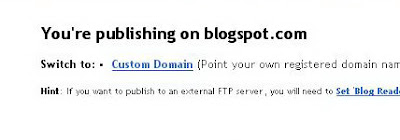
1. Go to Your Blogger Dashboard, click on Publishing tab and click again on Custom Domain


2. Type in the URL of your new website in the Domain text box, don forget to change the domain into different extension, in case you are using other domain than .com

3. Login to your Godaddy Hosting account and click on Domain, click one of the domain that you would like to manage

4. On the next screen, check the domain box and you should see a new option on the right top side under the box tab that says "Total Control and MX Records link"

5. Once you see it, click on that. On the next screen, you can either add a new CName if only your host does not have WWW. Otherwise, click the existing www cname and make it point to the ghs.google.com link.

6. Go to your Command prompt (Start > Run, type cmd for WinXP and command for Win2000). Ping your blogger account by type in ping yourblog.blogspot.com. Note down the IP address that shows up

7. Next, you need to ping your .com domain. Afterward, note down the IP address that shows up.

8. Now you have to associate this IP Address with your A Host in your godaddy account. Go to the same manage domains page and your total dns control panel and edit your A Host or @ and make it point to the IP address that you noted down on step #6. If you decide to use .com domain for hosting your own blog such as Wordpress then switch back the IP Address to your .com IP address at step #7